Optimising a Minecraft server can be hard. This guide will tell you where you can make compromises so your server runs better, which tools you can use, what all of the values mean and how to configure them correctly.
This guide explains everything, so even someone who does not understand the topic can learn how to do things right.
The guide is aimed at Minecraft 1.20 and newer, so some settings and advice may not apply to older versions.
What Server Lag Actually Is
The server runs a loop called a tick. Twenty times a second it moves every entity, grows a share of the crops, runs the redstone, fires the mob spawning attempts, and sends the results to everyone connected. That leaves it 50 milliseconds to get through all of it. Finish early and it waits out the rest of the tick before starting again. Finish late and the next tick starts late too, which is the moment the world slows down for everyone.
Two numbers describe that loop, and you will run into both of them constantly.
TPS is ticks per second, meaning how many of those loops the server actually completed. It caps at 20, because the server never runs the game faster than it is meant to go. Below 20 the world itself is running slow, so 18 TPS means crops, furnaces and mobs are all moving at ninety percent speed.
MSPT is milliseconds per tick, meaning how long a single loop took. It has no ceiling, and it is the number that tells you how much room is left, because a 12 millisecond tick and a 48 millisecond tick both show a perfect 20 TPS.
That is why MSPT is the one to watch. TPS only starts dropping once the headroom is already gone, so it tells you that you have a problem rather than that one is coming. A server averaging 45 milliseconds looks flawless and is one busy evening away from lagging, while a server averaging 12 has room for roughly four times that workload before ticks start running late.
Paper, the most popular Minecraft server software and the one most of this guide is built around, has a /mspt command. It prints three groups of numbers, for the last 5 seconds, the last 10 seconds and the last minute. Each group holds three values separated by slashes, the average tick, the fastest tick and the slowest tick, in that order.
Server tick times (avg/min/max) from last 5s, 10s, 1m:
◴ 12.4/9.8/21.3, 12.9/9.5/28.7, 13.1/9.1/64.2
The first value in each group, the average, is the one that matters. Under 50 means the server is keeping up, and the further under it sits, the more headroom you have.
The third value is the slowest single tick in that window. Seeing it go over 50 now and then is normal, because an autosave or a freshly generated chunk can make one tick run long without anyone noticing. It only becomes a problem when it happens all the time, or when the average starts climbing along with it.
In the example above the server averages about 13 milliseconds, and somewhere in the last minute one tick took 64. That is a perfectly healthy server. The numbers are also colour coded, green under 40, yellow from 40 to 50 and red at 50 or more, so a glance usually tells you enough.
Almost every setting in this guide exists to take work out of that loop and bring the millisecond number down.
Server lag, client lag and network lag are three different problems
Players say "lag" for all three, and they need different fixes.
| Symptom |
What it usually is |
| Mobs stutter instead of walking smoothly, chests and furnaces take a second to open, broken blocks pop back for a moment, levers and redstone respond late and commands take a while to answer. Everyone notices it at the same time. |
Server lag. Low TPS or high MSPT. This guide shows you how to fix it. |
| Low frames per second and stuttering while turning the camera. Only that one player notices it. |
Client lag. Their machine or their render distance. |
| Hits landing late and high ping in the player list. Some players notice it and others do not. |
Network lag. Routing, the host, or the player's own connection. |
Check TPS and MSPT before you change anything. If both are healthy while a player complains, the problem is not on the server and no config in this guide will help them.
Hardware and Hosting
Hardware is the most important part of a Minecraft server. Every setting in this guide changes how well the server uses the machine it runs on, and that always helps, but the hardware decides how far those settings can take you. That is why it makes sense to get the hardware right before anything else.
What CPU to pick, fast cores vs more cores
The tick loop runs on one main thread. Paper already moves most of the heavy work of loading, generating and saving chunks off it, but entities, redstone, block updates and most plugin code still run one after another on that one thread, which can only ever use one core at a time.
Some forks, meaning separate projects built on top of Paper, go further. Folia, made by the Paper team, groups nearby loaded chunks into regions and ticks those regions in parallel on a pool of threads, so players who are far apart no longer have to share one thread. These regions are not the same thing as the region files a world is saved in. They are built from whatever chunks are loaded, which mostly means the areas around players, and they merge or split as players move together or apart.
Even on Folia, each region's tick still runs in order on one thread. So single core performance sets the limit on how much one server, or one Folia region, can handle before its ticks start running late. That is why it is worth comparing processors on single thread benchmarks, not just on how many cores they have.
The number of cores still matters, just for different jobs. On one Paper server the extra cores load, generate and save chunks, run the garbage collector and handle network traffic, and that work tends to grow with the number of players. By default, Paper only starts generating chunks on more than one thread once the machine has four or more physical cores, and then uses up to half of them. On a network, where players connect through a proxy that passes them on to several servers, each of those servers runs its own tick loop, so more cores let you run more servers side by side on one machine. On Folia they run the tick itself. A big server or a whole network therefore needs fast cores and plenty of them.
For a sense of scale, an Intel Core i7-8700 from 2017, a six core processor whose single thread score is well below that of current ones, can still run a server for a small group of players. At the other end, an AMD Ryzen 9 7950X3D, a 16 core processor from 2023, has handled 100 players in our own testing. Folia goes further still. The Paper team's own Folia test server reached about 330 players at its peak, and Folia's documentation recommends at least 16 cores, which is exactly what the 7950X3D has. Folia's weak spot is plugins, though. Far fewer of them work on it than on Paper, as the section on server software below explains.
How far any processor goes depends on plugins, farms, redstone and view distance, not just on the number of players, so the real test is /mspt at your busiest time. If the average stays well under 50 milliseconds, the processor is enough for that load.
Memory
"The server has 32GB of RAM" tells you very little about how well it will run. It needs enough memory, but the CPU matters far more for how fast the tick runs, so memory should not be the number you choose a host by.
You want at least 6GB for the server, even a small one, and Paper recommends 6 to 10GB no matter how few players you have. Java also needs some memory on top of what you give the server, and so does the operating system, so set the server about 1000 to 1500MB below what the machine actually has. Paper's own example is a machine with 8GB, where the server should get about 6500MB.
Past a certain point, more memory stops making a difference, as Paper's documentation puts it, but where that point sits depends on the server. Big servers with a lot of plugins and close to a hundred players can use more than 20GB, and Aikar's original guide has adjusted flag values for servers given more than 12GB. A network needs more again, because every server on it is its own program with its own memory, so five servers need roughly five times as much as one, plus some for the proxy.
Storage
Never a mechanical hard drive. Minecraft reads and writes chunk data constantly, and on a spinning disk chunks load slowly around moving players, while anything that has to wait for a chunk holds up the whole tick. An SSD is the minimum, and NVMe is better on a server with a high view distance or a lot of players. Plan for space as well, because a normal survival server with a few dozen players can grow to many tens of GB over time.
Shared hosting
Cheap plans usually sell you a small guaranteed slice and a much larger shared pool. The advertised performance comes from the shared part, which you only get when the other servers on the machine are not using it. Providers oversell that pool, so at peak time, which is exactly when you need it, it is not there.
Whenever the budget allows, use a dedicated server instead. That is a whole physical machine rented only to you, so the processor and the memory are yours all the time and no one else's server can slow yours down.
If the budget only reaches shared hosting, that is a real constraint and this guide still helps. Just know that a neighbour's server can undo your work, and that unexplained lag with a clean spark profile often means the machine itself is contended.
How to Find What Is Causing Your Lag
The most common mistake in server optimisation is copying a config from a guide, watching nothing improve, and copying another one. A profiler tells you where the time is actually going, and it usually is not where you assumed.
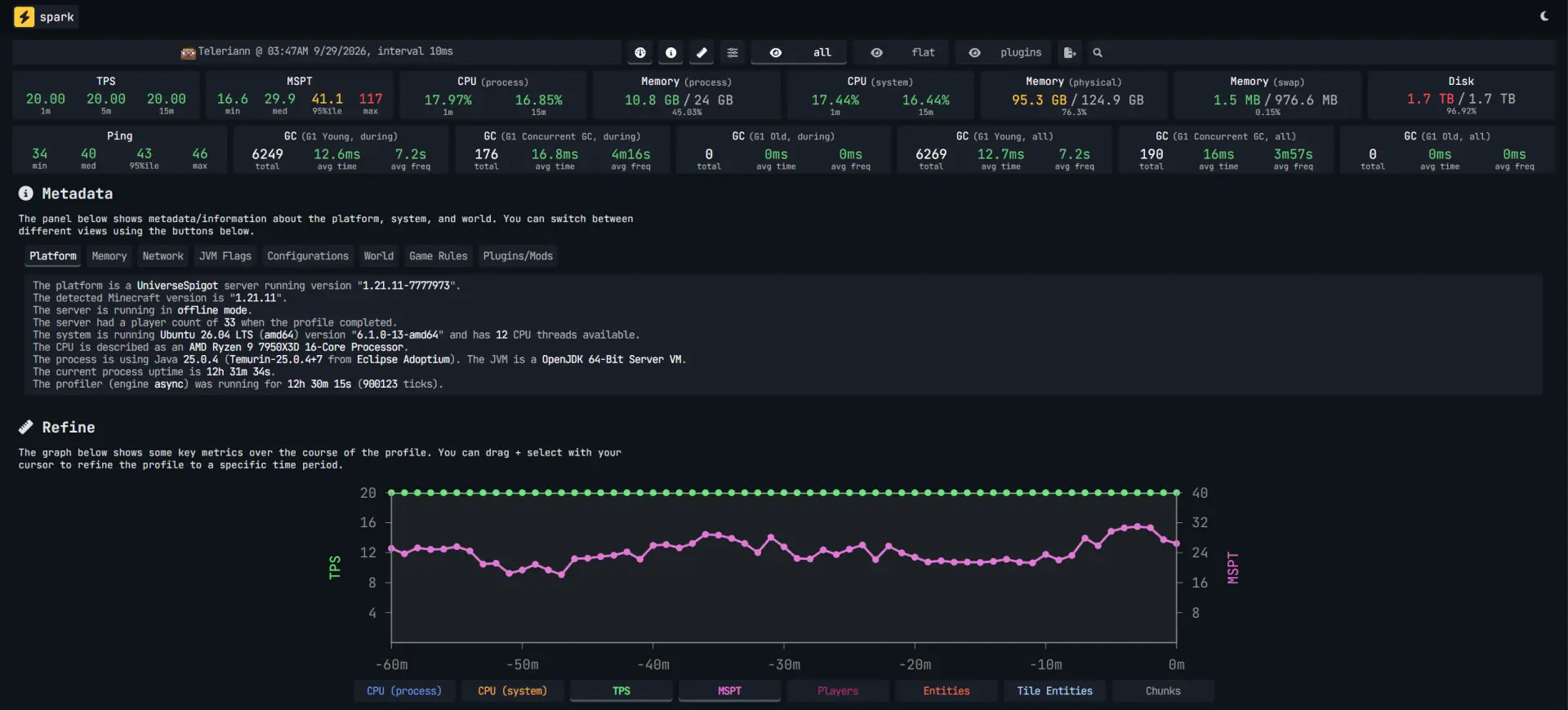
What spark is
Spark is a free profiler, a tool that shows you what is slowing your server down. While it runs, it checks many times a second what the server is busy with. When you stop it, it gives you a report showing how much of the server's time went to each plugin and to each part of the game.
Paper has come with spark built in since 1.21 and calls it the preferred way to profile Paper, so on a current Paper server there is nothing to install and the /spark commands below just work. It replaced Timings, the older tool you may still see in old guides, which Paper turned off by default in 1.21. On older versions and on other server software, such as Spigot, Velocity or BungeeCord, you install spark yourself as a plugin.
Whichever way you get it, take a profile while the server is healthy too, so you have something to compare against when it is not.
The commands worth knowing
| Command |
What it does |
/spark profiler start |
Starts recording |
/spark profiler stop |
Stops recording, uploads the result and prints a link |
/spark profiler open |
Gives you a link without stopping the recording |
/spark profiler cancel |
Stops recording and throws the data away |
/spark heapsummary |
Shows what is filling the memory |
/spark heapdump |
Saves a full copy of the server's memory to a file on disk. The file can be several GB, so check your free disk space first. |
How to actually take a useful profile
By default, spark starts profiling in the background when the server starts, and /spark profiler open gives you a link to what it has recorded without stopping it. Spark only keeps roughly the last hour of data, so to see why the server lags at its busiest, take a fresh profile at that time. Running /spark profiler start stops the background profile first and starts a new one.
- Wait for the server to be busy. A profile taken on an empty server at 3am tells you nothing about why it lags at peak time.
- Run
/spark profiler start --timeout 300 and leave it alone for the full five minutes. Anything shorter than about three minutes is too small a sample.
- Take the link it prints when it finishes.
- Open the link and click plugins in the bar at the top. If one plugin takes a big share of the tick time, that plugin is the first thing to look at.
- If no plugin stands out, the time is going to the game itself, things like entities, chunks and redstone. Switch back to all to see which part of the game is busiest, and use the settings in the rest of this guide.
The all view, which opens first, is a tree of every method the server called, which is accurate but hard to read. The plugins view filters the same data down to your plugins.
Reading the result without being a developer
Start with the plugins view. Each plugin has its own line with a percentage, which is its share of the server's time during the profile. A single plugin above 8-10% is usually a bad sign and worth a closer look.
Then switch to all and click Server thread, the main thread that runs the tick. Each line opens into the parts it is made of, so keep opening the one with the biggest percentage until you reach something you recognise, such as a plugin, entities, chunks or redstone. Hovering over a line shows its time in milliseconds.
The biggest lines are usually entity ticking, block entities such as hoppers, and chunks. Among entities, villagers are usually the heaviest. The settings further down cover what to do about them.
How to download a spark report
When the profiler finishes, spark uploads the data and gives you a link to the viewer. The file itself sits on a separate address with the same code at the end, so to download it, replace spark.lucko.me in the link with spark-usercontent.lucko.me and open it in your browser.
- Viewer link
https://spark.lucko.me/abc123
- Download link
https://spark-usercontent.lucko.me/abc123
The file is the whole profile, and it can be big, since even an hour of profiling on a busy server can be over 100MB. To open it again later, rename it so it ends in .sparkprofile and drag it onto spark.lucko.me, which only accepts .sparkprofile and .sparkheap files. Developers often ask for a spark link or file when you report a performance problem to them. You can also give the file to an AI assistant that can work with files and ask it what is slowing the server down, which can help a lot if you cannot make sense of the profile yourself.
Which Server Software to Run

Your choice of jar is the single largest performance decision you will make, and it costs nothing. The differences between the free options are much larger than anything you can achieve by tuning a bad one.
Paper
Paper is the default answer for almost every server. It started as a fork of Spigot, rebuilt the way chunks are loaded, generated and saved and the way lighting is calculated, sped up how entities collide and are tracked, and exposes hundreds of settings that vanilla does not.
Most Bukkit and Spigot plugins run on it unchanged, but not all of them. Since 1.21.4 Paper has been fully separate from Spigot, so plugins that rely on Spigot features added after that point, or that reach into the server's internal code, can break.
Purpur
Purpur is a fork of Paper that adds a very large number of configuration options, some of them for performance and many of them for gameplay. It is a drop in replacement for Paper, so plugins built for Paper run on it too, and Paper's own settings are all still there.
Several of the settings later in this guide only exist on Purpur, the villager search radius and the portal restriction among them. So if you want more control over your server and more ways to tune its performance, running Purpur instead of Paper is a no-brainer. The cost is that you are one step further from upstream, so a Paper bug fix reaches you slightly later.
Folia
Folia is a fork of Paper, made by the Paper team, that groups nearby loaded chunks into regions and ticks them in parallel on a pool of threads. It is built for servers where players are spread far apart across a big map, and its documentation recommends at least 16 CPU cores.
The catch is plugins. Folia only loads plugins whose authors have explicitly marked them as compatible, and its own documentation says to expect almost no plugin to work without changes, so far fewer plugins support Folia than Paper. For most basic servers Folia is the wrong tool.
UniverseSpigot and other paid forks
UniverseSpigot is a paid, closed source fork aimed at busy servers and networks.
It supports most releases from 1.20 up to the newest ones. Access goes through a ticket on their Discord rather than a public download.
In practice, a paid fork should be your last step, not your first. It is worth considering once you have already picked a free one, tuned it, profiled it, and found that the remaining bottleneck is the server software itself rather than your plugins or your config. It is very rarely the first thing you are missing. Most servers that are struggling are struggling because of a view distance, a plugin, or a huge number of big mob farms, and none of those get fixed by a different jar.
What to stay away from
- CraftBukkit and Spigot. They still get updates for new Minecraft versions, but far less performance work than Paper. Most Spigot plugins run on Paper too, with the exceptions described above.
- Random forks you know nothing about. A server jar runs with full access to your machine, so one from an unknown source can hide anything. Small forks far down the chain can also be unstable or simply stop getting updates. Stick to software with a clear track record.
Tuning Your Server Settings
Everything so far was about understanding lag, picking the right hardware and software, and finding out what is slow. From here on, the guide goes through the settings themselves, which is where you actually make the server run better.
They live in a handful of files. server.properties, bukkit.yml and spigot.yml sit in the main server folder, along with purpur.yml if you run Purpur. Paper's own paper-global.yml and paper-world-defaults.yml sit in the config folder. Restart the server after changing them.
Two ways to tune a server
If you read several optimisation guides you will find they contradict each other, and it is worth knowing why rather than assuming one of them is wrong.
The first way is to tune for the lowest possible tick time. That means simulation distance at 4, mob caps at 20, short activation ranges, and accepting that some farms stop working. It suits a large public server where the priority is that 200 people can play at once.
The second way is to keep the game as close to vanilla as possible, with acceptable distances, mob caps high, and only the savings players cannot notice. It suits a survival community of 75 people who care that their farms work.
Both are correct, each for its own type of server. The mistake is taking the aggressive numbers from a guide written for a 200 player server and applying them to a 20 player survival server, then wondering why the iron golem farms stopped and nothing got faster. Start from what your server actually is, change one thing at a time, and let /mspt tell you whether it helped.
This guide aims for as much performance as possible while keeping most of the vanilla behaviour. Wherever a setting changes how something in the game works, a farm for example, the guide points it out, and you can decide what fits your server.
server.properties
The main settings file of every Minecraft server, in the main server folder. This guide changes two settings in it.
simulation-distance
The world is split into chunks of 16 by 16 blocks, and this is how many of them around each player the server actually runs. Inside that area, furnaces smelt, crops grow, mobs think, redstone fires and hoppers move items. Outside it, the world still exists and can still be seen, but nothing happens there.
It has a huge impact on performance, because the area grows with the square of the distance. Going from 4 to 8 does not double the work, it roughly quadruples it. The area right around each player keeps running as normal, so a lower value mostly affects things happening further away, such as a farm whose owner has walked off.
The default is 10. Good values depend on the kind of server.
| Server |
simulation-distance |
| Survival or SMP, the lowest you should go |
4 |
| Busy public server, performance first |
3 |
| Server where every farm must work as in vanilla |
10, the default |
Many vanilla farms are built for the default of 10, so lowering it even by one can break a lot of them.
view-distance
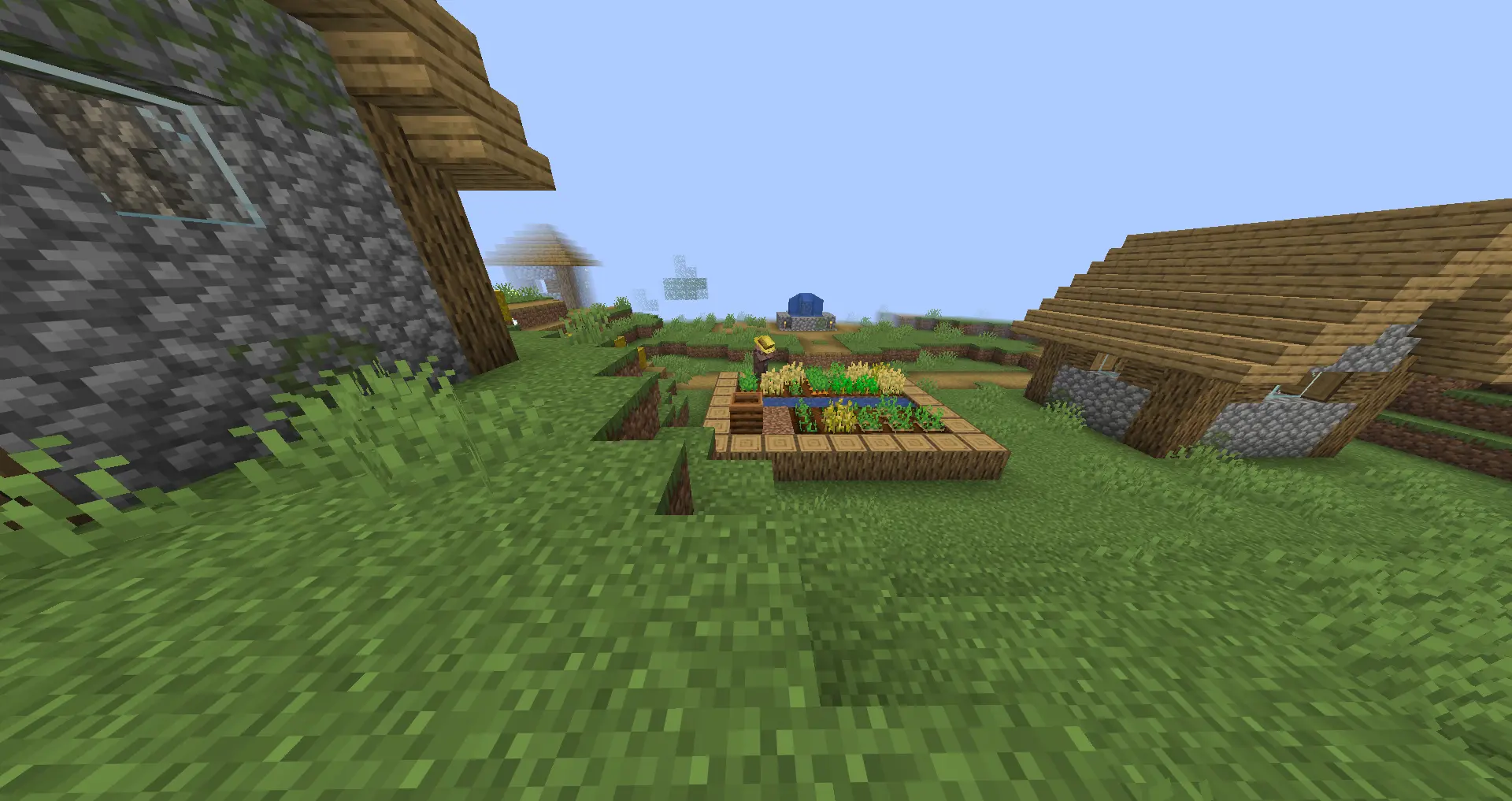
How many chunks the server sends to each player, which decides how far they can see. It costs memory, bandwidth and disk reads, because those chunks have to be loaded and sent, but it has less of an impact than simulation distance, because chunks beyond the simulation distance are only shown, not run.
View distance can be higher than simulation distance, so players see far while the server only runs the area close to them.
So when you need to save performance, lower simulation distance rather than view distance. View distance is what players actually see, so they notice it much more when it is set too low.
The default is 10.
| Server |
view-distance |
| Survival or SMP |
10 |
| Busy public server, performance first |
6-8 |
bukkit.yml
Bukkit's settings file, in the main server folder. It decides how many mobs can exist and how often the server tries to spawn them.
spawn-limits
The cap for naturally spawning mobs, not for all mobs. Mobs from spawners, breeding, spawn eggs or commands are not held back by it. Roughly, the total is the limit multiplied by the number of players, so on a 40 player server a monster limit of 30 allows about 1,200 monsters.
The defaults are monsters 70, animals 10, water-animals 5, water-ambient 20, water-underground-creature 5, axolotls 5 and ambient 15. Recommended values look like this.
spawn-limits:
  monsters: 30
  animals: 5
  water-animals: 3
  water-ambient: 2
  water-underground-creature: 3
  axolotls: 3
  ambient: 3
ticks-per
How often, in ticks, the server tries to spawn each group. Attempting a spawn costs time even when nothing spawns, so slowing down the groups nobody notices is close to free.
Every value defaults to 1, meaning every tick, except animal-spawns, which is already 400. Recommended values look like this.
ticks-per:
  monster-spawns: 20
  animal-spawns: 400
  water-spawns: 400
  water-ambient-spawns: 400
  water-underground-creature-spawns: 400
  axolotl-spawns: 400
  ambient-spawns: 400
Water and ambient mobs do not die quickly, so trying to spawn them every tick is wasted work. Monsters at 20 means the server tries to spawn them once a second instead of every tick, so fast mob farms will produce less.
spigot.yml
Spigot's settings file, in the main server folder. Everything below sits under world-settings.default, which applies to every world. Settings are written as paths here, so world-settings.default means default indented under world-settings in the file.
mob-spawn-range
How far from a player mobs may spawn, in chunks. The default is 8. It should be the same as your simulation distance in server.properties or a little lower, so with a simulation distance of 3 or 4 this is a good value.
mob-spawn-range: 3
Lowering it concentrates the same number of mobs into a smaller area, which makes the world feel busier while the server does less.
entity-activation-range
How close a player must be for an entity to think. Outside the range it exists but does nothing. The defaults are animals 32, monsters 32, raiders 64, misc 16, water 16, villagers 32 and flying-monsters 32. Recommended values look like this.
entity-activation-range:
  animals: 16
  monsters: 24
  raiders: 48
  misc: 8
  water: 8
  villagers: 20
  flying-monsters: 32
Lower values help performance, but it is easy to overdo. Set them too low and mobs stand still until a player is nearly on top of them, and mob farms that depend on mobs moving stop working. Iron golem farms are the most common victim.
entity-activation-range.tick-inactive-villagers
Whether villagers keep thinking outside the activation range. The default is true.
entity-activation-range:
  tick-inactive-villagers: false
Turning it off helps a lot with villager lag, but it can break iron golem farms and delay trade restocking, so decide whether that matters to your players first.
entity-tracking-range
How far away an entity is sent to players, meaning how far away they can see it. The defaults are players 128, animals 96, monsters 96, misc 96, display 128 and other 64. Recommended values look like this.
entity-tracking-range:
  players: 48
  animals: 48
  monsters: 48
  misc: 32
  display: 96
  other: 64
Keep it above the activation range, or mobs will appear out of nowhere at close distance. The display range covers display entities, such as floating text, and is kept higher than the rest so they can still be seen from further away.
nerf-spawner-mobs
Removes the AI from anything a spawner produces. The mobs still spawn, die and drop loot, but they no longer pathfind and just stand in place unless something like water pushes them. The default is false, and true is worth it on a server with many spawners.
nerf-spawner-mobs: true
Paper's entities.behavior.spawner-nerfed-mobs-should-jump lets them still jump in water, which some farm designs need.
merge-radius
Combines nearby dropped items and experience orbs into single stacks. The defaults are item 0.5 and exp -1. Setting item to 3.5 and exp to 4.0 removes a lot of ticking entities from the ground.
merge-radius:
  item: 3.5
  exp: 4.0
Push it much higher and items appear to teleport through walls, because there is no wall check unless Paper's fixes.fix-items-merging-through-walls is on.
ticks-per.hopper-transfer and ticks-per.hopper-check
hopper-transfer is how many ticks a hopper waits before moving an item, and hopper-check is how many ticks it waits before looking for an item above it or in the container above it. The defaults are 8 for hopper-transfer, which is the vanilla hopper speed, and 1 for hopper-check, which means hoppers look every tick. For most servers, keep both at the default.
ticks-per:
  hopper-transfer: 8
  hopper-check: 1
On a server where performance comes first, you can raise them, for example hopper-check to 8, which helps when there are many hoppers. Higher values can break hopper clocks and item sorters, especially ones that rely on water streams, so check whether your players use them first.
paper-world-defaults.yml
Paper's world settings, in the config folder. They apply to every world, and each world also has its own paper-world.yml, which can override them for that world alone. Since 26.1 that file sits in the dimension's folder, such as world/dimensions/minecraft/the_nether, and on older versions directly in the world's folder, such as world_nether.
chunks.delay-chunk-unloads-by
How long chunks stay loaded after a player leaves. The default is 10s, and that is a good value. Players walk back and forth constantly, and without a delay the server would keep loading the same chunks it just threw away.
chunks:
  delay-chunk-unloads-by: 10s
Do not push it much higher, because every chunk kept loaded sits in memory. For an area that is busy all the time, such as a spawn, keeping it permanently loaded is lighter than loading and unloading it over and over.
chunks.prevent-moving-into-unloaded-chunks
The default is false, and true helps performance. When a player reaches a chunk that is not loaded yet, the server has to load it right there in the middle of the tick, which is exactly the kind of blocking work everything else is trying to avoid. This stops it, and the lower your view distance, the more often it helps.
chunks:
  prevent-moving-into-unloaded-chunks: true
Be careful with it on a classic survival server, though. A player who tries to move into a chunk that has not loaded yet is stopped and pulled back, which can be quite limiting, especially when flying with an elytra.
chunks.entity-per-chunk-save-limit
Caps how many entities of each type get written into a chunk when it is saved. Projectiles such as arrows and snowballs can pile up in busy areas, and every one of them is written to disk and read back when the chunk loads.
By default there is no limit, -1, for arrows, ender pearls, experience orbs, fireballs and snowballs. A limit of around 8 to 16 for each projectile type is plenty. Recommended values look like this.
chunks:
  entity-per-chunk-save-limit:
    arrow: 16
    spectral_arrow: 16
    trident: 16
    experience_orb: 16
    ender_pearl: 8
    snowball: 8
    egg: 8
    fireball: 8
    small_fireball: 8
    firework_rocket: 8
    splash_potion: 8
    lingering_potion: 8
    shulker_bullet: 8
    wind_charge: 8
    breeze_wind_charge: 8
    area_effect_cloud: 8
    eye_of_ender: 8
    wither_skull: 4
    dragon_fireball: 3
    experience_bottle: 3
    llama_spit: 3
Nothing is removed while the chunk is loaded. When it is saved, only entities up to the limit are written to disk and the rest are skipped, so once the chunk unloads, everything over the limit is gone for good. The server does not choose which ones to keep, so if more than 16 tridents lie in one chunk, a player's own trident can be among the ones that disappear.
This only kicks in when a chunk is saved or loaded, so it is not a tool for controlling mob farms. Do not put mobs in this list expecting it to work like a spawn cap.
entities.spawning.despawn-ranges
When a distant mob is removed. By default, vanilla's ranges apply, 32 blocks for the soft range and 128 for the hard range, except water_ambient, where the hard range is 64. Beyond the hard range a mob disappears instantly, and between the two it has a random chance of despawning.
Set soft to around 30 and hard to a bit more than your simulation distance in blocks. The formula is simulation distance multiplied by 16, plus 8. At a simulation distance of 4 that gives 72, which accounts for chunks that have not unloaded yet because of the unload delay. water_ambient can stay at 64, since that is already lower.
entities:
  spawning:
    despawn-ranges:
      ambient:
        hard: 72
        soft: 30
      axolotls:
        hard: 72
        soft: 30
      creature:
        hard: 72
        soft: 30
      misc:
        hard: 72
        soft: 30
      monster:
        hard: 72
        soft: 30
      underground_water_creature:
        hard: 72
        soft: 30
      water_ambient:
        hard: 64
        soft: 30
      water_creature:
        hard: 72
        soft: 30
collisions.max-entity-collisions
How many other entities each entity can push against at once. The default is 8, and 2 is enough in most cases. Every entity in a crowd checks the others around it, so a pile of mobs in one block gets expensive fast. A value of 0 turns pushing off completely, so players cannot push mobs out of the way either.
collisions:
  max-entity-collisions: 2
collisions.fix-climbing-bypassing-cramming-rule
The default is false, and true is better. It closes a hole where climbing mobs ignore the cramming limit, which is how people stack absurd numbers of spiders in one block.
collisions:
  fix-climbing-bypassing-cramming-rule: true
misc.update-pathfinding-on-block-update
The default is true, and false helps performance. Mobs stop recalculating their route every time a nearby block changes and keep following the old one until their own AI asks for a new route, so in some cases they can look a little less responsive.
misc:
  update-pathfinding-on-block-update: false
entities.armor-stands
Both tick and do-collision-entity-lookups default to true, and false is better for both. Armor stands are used as decorations and as holograms by a lot of plugins, and there can be thousands of them on a server.
entities:
  armor-stands:
    do-collision-entity-lookups: false
    tick: false
With ticking off they are no longer affected by gravity or pushed by water. That can get in the way quite a lot on a vanilla server, for example an armor stand placed in the air just stays floating, so be careful with it.
tick-rates
How often, in ticks, certain things run. By default villagers scan their surroundings at vanilla speed and mob-spawner, grass-spread and container-update run every tick. Recommended values look like this.
tick-rates:
  sensor:
    villager:
      secondarypoisensor: 80
      nearestbedsensor: 80
      villagerbabiessensor: 40
      playersensor: 40
      nearestlivingentitysensor: 40
  mob-spawner: 2
  grass-spread: 4
  container-update: 1
The villager values make them scan their surroundings less often, for beds, players and other mobs nearby. mob-spawner at 2 halves how often spawners are checked, but going much higher starts to reduce spawn rates. grass-spread at 4 slows grass spreading in a way that is hardly noticeable. container-update stays at 1, because raising it makes ghost items in inventories more likely.
entities.spawning.alt-item-despawn-rate
Sets a different despawn time for specific items. In vanilla, every dropped item disappears after 6000 ticks, which is five minutes. It is off by default, and it is best to leave it that way.
If certain items pile up on your server and cause problems, for example cobblestone from mining, you can shorten the time for just those items. At 300 ticks, they disappear after 15 seconds.
entities:
  spawning:
    alt-item-despawn-rate:
      enabled: true
      items:
        cobblestone: 300
        cobbled_deepslate: 300
        netherrack: 300
The shorter time applies to every dropped item of that type, including items a player drops on death, so only list items nobody will miss.
entities.spawning.non-player-arrow-despawn-rate and creative-arrow-despawn-rate
By default they disappear one minute after landing, like any other arrow. Setting both to 20, which is one second, removes arrows shot by mobs or by players in creative mode soon after they land. Neither kind can be picked up by a player, so there is no reason to keep them around.
entities:
  spawning:
    non-player-arrow-despawn-rate: 20
    creative-arrow-despawn-rate: 20
misc.redstone-implementation
The default is VANILLA. ALTERNATE_CURRENT replaces the vanilla redstone dust logic with a faster one that avoids a huge number of redundant block updates, while behaving almost exactly like vanilla.
misc:
  redstone-implementation: ALTERNATE_CURRENT
environment.optimize-explosions
The default is false. true makes the server remember how exposed each entity is to an explosion and reuse that for other explosions at the same spot in the same tick, instead of calculating it again. That speeds up explosions a lot when many go off together, such as with TNT.
environment:
  optimize-explosions: true
hopper
ignore-occluding-blocks defaults to false, and true stops hoppers checking for containers buried inside full blocks, such as a hopper minecart inside sand. It breaks the few contraptions that depend on that. Leave disable-move-event at its default false.
hopper:
  disable-move-event: false
  ignore-occluding-blocks: true
Setting disable-move-event to true stops the server firing an event to plugins every time a hopper moves an item, which saves work on a server with many hoppers, but protection plugins rely on that event. Chest lock plugins use it to stop hoppers taking items out of locked chests, so with the setting on, a hopper placed under a locked chest can empty it. CoreProtect also stops logging hopper transfers completely, so you cannot check afterwards what a hopper took.
environment.treasure-maps
A treasure map from a chest, or a map a cartographer sells, makes the server search for the nearest matching structure in the middle of the tick. Mojang fixed the lag this caused in 1.20.5, so leave treasure maps on.
environment:
  treasure-maps:
    enabled: true
On 1.20.4 and older, a buried treasure search could freeze the server for several seconds, so set it to false there. Chests then contain an empty map instead, and cartographers no longer offer their explorer maps.
purpur.yml
Purpur's settings file, in the main server folder, only on Purpur. Everything below sits under world-settings.default.
mobs.villager.search-radius
How far villagers search for job site blocks and beds. acquire-poi and nearest-bed-sensor both default to 48. Setting both to 16 saves a lot of work with many villagers, but villagers will no longer find job sites or beds further away than that.
mobs:
  villager:
    search-radius:
      acquire-poi: 16
      nearest-bed-sensor: 16
mobs.villager.lobotomize
The default is false, and it is best left that way. true switches off the AI of every villager that cannot step onto any neighbouring block, such as the ones in one block cells in trading halls. They can still trade, and Purpur restocks their trades on its own, but they no longer move, sleep, breed, run from zombies or spawn iron golems, so iron farms with stuck villagers stop working.
mobs:
  villager:
    lobotomize:
      enabled: false
If a spark profile shows that villagers take up a lot of the tick, for example because players keep big trading halls, you can turn it on together with wait-until-trade-locked, which only affects villagers that have already been traded with, so an iron farm whose villagers nobody trades with keeps working.
mobs:
  villager:
    lobotomize:
      enabled: true
      wait-until-trade-locked: true
gameplay-mechanics.entities-can-use-portals
The default is true. false stops entities other than players from travelling through portals. An entity changing worlds loads chunks on the main thread, and a farm pushing mobs through a portal does it over and over.
gameplay-mechanics:
  entities-can-use-portals: false
Whether to change it depends on the server, because some farms send mobs or items through a portal on purpose and stop working with it turned off.
mobs.zombie.aggressive-towards-villager-when-lagging
The default is true. false makes zombies ignore villagers while the server is lagging, which in Purpur means below its lagging-threshold of 19 TPS by default. A zombie chasing a villager has to keep working out a path to it, so this takes that work away exactly when the server is already struggling.
mobs:
  zombie:
    aggressive-towards-villager-when-lagging: false
Java Version and Startup Flags
Which Java
Minecraft versions from 1.20.5 up to 1.21.11 need Java 21, and 26.1 and newer need Java 25, so updating a server to 26.1 also means updating Java. Older versions use older Java releases, and Paper's documentation lists the right one for each. As a rule of thumb, the newer the Java version, the better, as long as your server and plugins run on it.
How much memory to give it
How much memory a server needs is covered in the Memory part of the hardware section above. With the flags below, the minimum and the maximum are set to the same value and all of it is claimed at startup, so the server shows as using its full amount straight away. That is expected and not a sign of a problem.
Aikar's flags
Java's default garbage collector settings are written for general purpose applications. Minecraft allocates memory in a very particular pattern, an enormous number of short lived objects plus periodic chunk data, and the defaults handle it by occasionally pausing everything for a few hundred milliseconds. That pause is a lag spike with no cause visible in any profile of the server itself.
Aikar's flags retune the G1 collector for that pattern. They are published in Paper's own documentation, which is the version to copy and also explains what each flag does.
java -Xms10G -Xmx10G -XX:+UseG1GC -XX:+ParallelRefProcEnabled -XX:MaxGCPauseMillis=200 -XX:+UnlockExperimentalVMOptions -XX:+DisableExplicitGC -XX:+AlwaysPreTouch -XX:G1NewSizePercent=30 -XX:G1MaxNewSizePercent=40 -XX:G1HeapRegi8M -XX:G1ReservePercent=20 -XX:G1HeapWastePercent=5 -XX:G1MixedGCCountTarget=4 -XX:InitiatingHeapOccupancyPercent=15 -XX:G1MixedGCLiveThresholdPercent=90 -XX:G1RSetUpdatingPauseTimePercent=5 -XX:SurvivorRatio=32 -XX:+PerfDisableSharedMem -XX:MaxTenuringThreshold=1 -jar server.jar --nogui
Replace 10G in both places with the memory you decided on, and server.jar with your file name.
Pregenerating the World
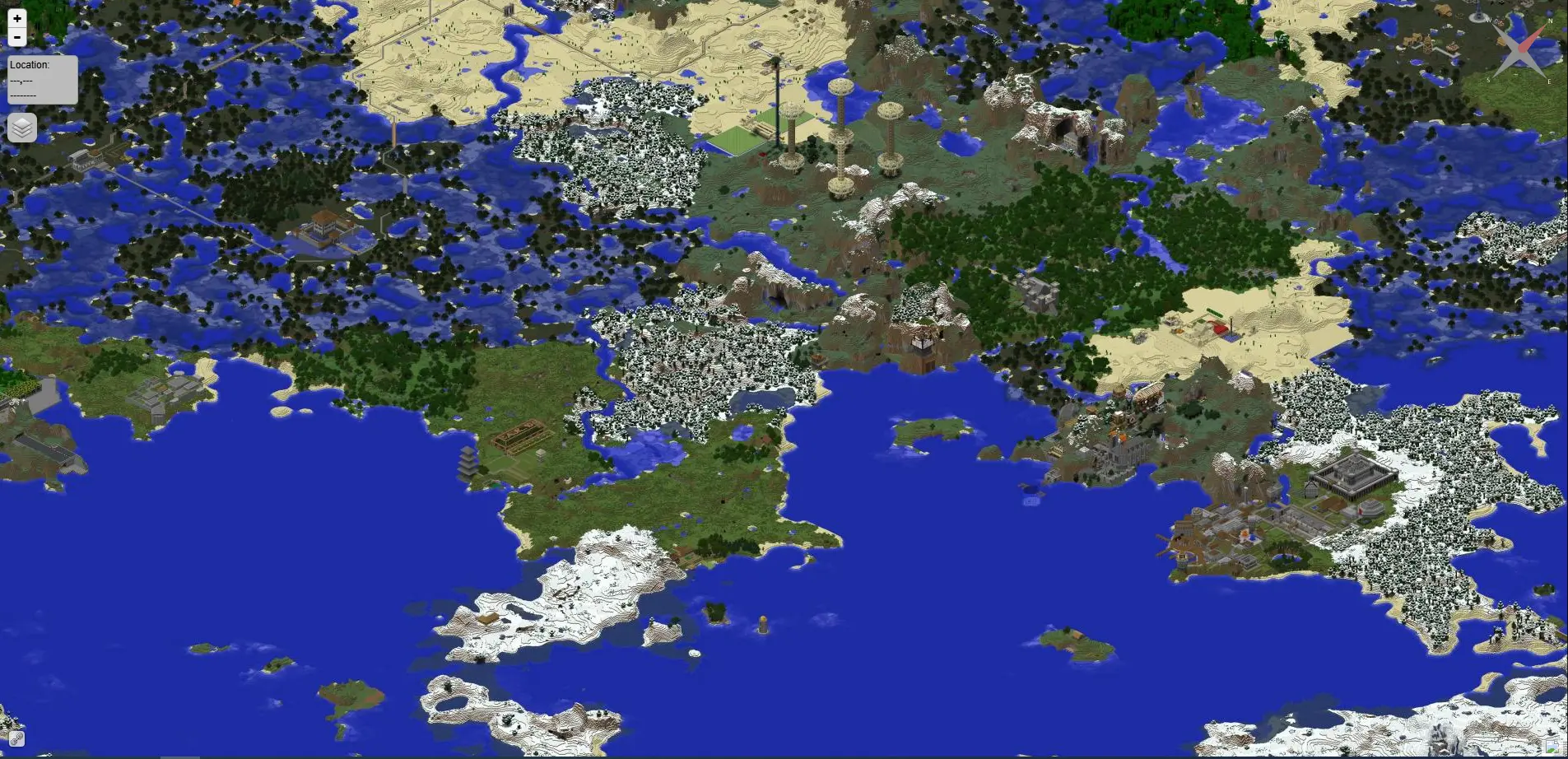
Generating a chunk for the first time is far more expensive than loading one that already exists. Pregeneration does that work in advance, ideally before players join, so they only ever load chunks that are already there.
Paper does the heavy part of chunk generation off the main thread, so pregeneration matters much less than it used to. It is still worth doing on a weak or heavily shared CPU, and if you run a live map plugin such as Dynmap or Pl3xMap and want the whole world on the map, since they only draw chunks that exist.
It is not free. A 10000 border holds about 390,000 chunks in the overworld. In an independent benchmark on Paper 1.20.4 with four worker threads, CPUs generated between about 50 and 180 chunks per second, which puts that border somewhere between 35 minutes and just over two hours, with the CPU busy the whole time. The World Size Calculator that Chunky's FAQ points to estimates just under 4 GB for that overworld on 26.1, plus about 1.7 GB for an end of the same size. So do not make the border bigger than you need.
Chunky is the standard tool. The sequence is short.
- Decide how big the world should be and set the vanilla border with
/worldborder set 10000, which is a diameter in blocks.
- Run
/chunky worldborder to make Chunky match that border, then /chunky start.
- Repeat for the nether and the end, because each dimension has its own border.
- It is best to run it while nobody is online, so the extra load does not cause lag for players. If that is not possible, you can use
/chunky pause and /chunky continue around peak hours.
Two things catch people out. Chunky takes a radius while the vanilla command takes a diameter, so a 10000 border is a 5000 radius. And the nether is eight times smaller than the overworld, so a 10000 overworld border matches a 1250 nether border.
Setting the vanilla border is worth doing even if you never pregenerate, because it caps how far players can go, and with it how much of the world is ever generated and saved.
Plugins Are Often the Problem
After chunks and entities, plugins are where the remaining time goes.
Audit what you actually run
Take the plugin list and mark each one as used in the last month, or not. The not pile is the first thing to remove, because every plugin costs startup time, memory and often a listener on a common event, whether or not anybody uses its features.
Then take a spark profile and look at the plugins view, which shows each plugin separately with how much of the tick time it used.
The plugins that promise more than they deliver
- Ground item clearers. Replaced entirely by
merge-radius and alt-item-despawn-rate, which are more configurable and cost nothing. A clearer scans every item on a timer, which is often more work than leaving the items alone.
- Mob stackers. Stacking naturally spawned mobs frequently makes things worse, because the mob cap frees up and the server immediately tries to spawn more. There is a narrow case for stacking spawner output on a server with a great many grinders. Outside that, it is hard to justify.
Plugins that do help
Farm Limiter is a good way to stop players from breeding more mobs than the server can handle. It looks for large groups of the same mob close together, such as hundreds of animals bred in one small space or monsters piling up in a grinder, and removes whatever goes over the limits you set, so it can help a lot against lag. Tamed and named mobs can be left out.
For blocks there is Insights. It limits how many of a block can be placed in one chunk, for example hoppers, so players cannot build huge sorting systems that lag the server. It is free, and the limits can be set per block type or for groups of blocks.
A Sensible Order to Do All of This
If you do everything at once you will not know what helped, and if something breaks you will not know what broke it.
Back up the server before you change anything. If a setting breaks a farm, you just change it back. If it breaks the world, only a backup can save you.
- Make sure the foundation is right, meaning an SSD, a CPU with strong single core performance and a host that is not overselling its machines. If one of those is missing, fix that first, because the settings below can only take a weak machine so far.
- Take a spark profile while the server is busy and keep the link. Paper 1.21 and newer have spark built in, other server software needs it installed first.
- Move to Paper or Purpur if you are not already there, and get on a current build. New builds keep bringing performance improvements, and an old jar misses all of them.
- Use the right Java for your version, Java 21 up to 1.21.11 or Java 25 from 26.1, with Aikar's flags and a sensible amount of memory.
- Set
simulation-distance and view-distance in server.properties. Watch /mspt for a day.
- Go through
bukkit.yml and spigot.yml. Watch again.
- Go through
paper-world-defaults.yml and, on Purpur, purpur.yml.
- Profile again and compare against the first one. Remove or replace whatever is now at the top.
- Pregenerate and set world borders if the CPU is weak or you run a map plugin.
- Only after all of that, consider whether better hardware or a different jar is the remaining limit.
Common Questions
Why is my server at 20 TPS but still feels laggy?
TPS averages hide spikes. Check MSPT with /mspt or /spark tps. A server that spends most of its time at 12 milliseconds and occasionally hits 400 will read as 20 TPS and feel awful. Use /spark profiler start --only-ticks-over 100 to catch just the bad ticks.
Will more RAM fix my lag?
Almost never. Lag is mostly a CPU problem. Only add memory when the garbage collector has to run very often because the memory keeps filling up, since every collection pauses the server for a moment and many of them in a row add up to lag. If it still runs that often after you add memory, look for a memory leak, such as a plugin that keeps holding on to data it no longer needs. Past a certain point, more memory brings minimal returns, as Paper's own documentation puts it.
Why did my iron golem farm stop working after I optimised?
Most likely tick-inactive-villagers set to false, or entity-activation-range for villagers set too low. Iron golem farms depend on villagers thinking and being scared while no player is standing next to them. Raise the villager activation range or turn inactive villager ticking back on for that world.
Do I need to pregenerate my world?
On Paper or a fork, usually not, especially in modern Minecraft, since the heavy part of chunk generation happens off the main thread. Do it if your CPU is weak or shared, or if you run a live map plugin. Set the world border either way.
Is a paid server jar worth it?
Only after you have tuned a free one and proved with a profile that the server software is the remaining bottleneck. For most servers it is not. If you do buy one, be wary of vague claims that everything is async, and prefer options that established networks are visibly running.
How many players can one server hold?
It depends a lot on the server, above all on the CPU and on how many plugins you run. As a rough guide, an average Paper or Purpur server on a top-end consumer CPU handles about 40 to 50 players without lag, and with heavy optimisation around 100.
Which single change gives the biggest improvement?
Moving off Spigot onto Paper or Purpur. Second is lowering simulation-distance, on nearly every server that has never been touched. Third is finding the one plugin that a spark profile says is eating a third of your tick.
Ready-to-Use Config Files
If you would rather not edit every file by hand, you can download the four files below with the settings from this guide already applied. They are the files a fresh Purpur 26.3 server creates, with only the recommended values changed, so everything else stays at its default.
bukkit.yml
spigot.yml
paper-world-defaults.yml
purpur.yml
Stop the server, back up your current files and replace them. bukkit.yml, spigot.yml and purpur.yml go into the main server folder, and paper-world-defaults.yml goes into the config folder.
The files are made for 26.3 and assume the simulation distance of 4 from the server.properties section. On an older version, or if you have already changed these files yourself, copy the values over instead of replacing the whole file.
Settings that can break farms or change how the game plays are left at their defaults, namely tick-inactive-villagers, nerf-spawner-mobs, prevent-moving-into-unloaded-chunks, lobotomize and entities-can-use-portals. Add them yourself if they suit your server.
Configs on PixelEast
If you would rather not tune everything yourself, you can browse Minecraft configs on PixelEast. Next to ready-made configs for popular plugins, you will also find configs made to improve performance, which can help you optimise your server faster.
Every listing states the supported Minecraft versions and its tags, so you know before you buy whether it will fit the server you are running.