Java Edition and Bedrock Edition do not speak the same language over the network. That is why somebody on a phone cannot simply type in your server address and join. Two free projects fix it. Geyser translates between the two protocols, and Floodgate lets those players in without owning Java Edition.
This guide explains what each one does, how to install them, how to configure the firewall, how players connect from a phone or a console, and what to check when it refuses to work.
What Geyser and Floodgate Actually Do
Geyser sits between a Bedrock client and a Java server and converts the packets in both directions. From the server side Geyser is the client, because it emulates a Java Edition client and the server thinks a Java player is joining.
Being the client is also what creates the next problem. A Java server with online-mode set to true demands that every client proves who it is, and Geyser is a client, so Geyser has to prove it too. How it does that is one setting in the Geyser config called auth-type, and it has to match what the server demands.
| Auth-type |
Player needs Java Edition |
Who verifies the player |
What you change on the server |
floodgate |
No |
Microsoft, through their Bedrock account |
Install the Floodgate plugin |
online |
Yes |
Microsoft, through their Java account |
Nothing |
offline |
No |
Nobody |
Set online-mode to false, which also stops Java players being verified |
floodgate
The player is already verified before they reach you. Bedrock Edition needs its own Microsoft account, so they arrive as a verified Bedrock account rather than a Java one. Geyser encrypts those details with your key, the plugin decrypts them with the matching half, and the server accepts them because it trusts the key. Keep that key on the server and leave validate-bedrock-login on, since the Geyser config warns that switching it off lets anyone spoof usernames.
Vouching is only part of what Floodgate does. It also shows Bedrock skins to Java players, lets plugins send Bedrock forms instead of chat messages, carries the account linking, and marks who arrived from Bedrock.
online
This one is about the device rather than the account. It is for players who own Java Edition but sit at a phone or a console. Geyser shows them a code, they enter it at microsoft.com/link, and they arrive as their usual Java self, UUID and progress included. The Java server sees none of that, because until Geyser holds the token the player is connected to Geyser alone.
offline
This value means Geyser proves nothing at all, so it matches only a server that has online-mode off. Nobody is verified then, Java players included.
It fits one case, a server with authentication off and no Floodgate installed. That is the smallest setup there is, Geyser on its own, and it costs you everything Floodgate would have brought with it.
With Floodgate installed, keep auth-type on floodgate instead. Set it to offline and Geyser stops sending anything to Floodgate, so the plugin goes quiet without a single error in the console.
Both projects are free and open source under the MIT licence.
What You Need Before You Start
- A Java server you control, running Spigot, Paper, BungeeCord or Velocity, or a fork of one of them.
- A UDP port. Bedrock uses UDP, and the default is
19132.
- ViaVersion, but only if your server runs an older Minecraft version than Geyser is built for. Geyser joins as a Java client of a particular version, so an older server turns it away with Outdated server until ViaVersion is there to accept it.
Geyser also runs as a mod on Fabric and NeoForge, and on its own as a standalone application. Those work too, but the folders and parts of the setup differ, so this guide stays with the four above.
Where Geyser goes depends on the setup. On a single server it belongs in the plugins folder. On a network it belongs on the proxy, so Bedrock players enter through the same door as everyone else and can move between servers normally.
A proxy here means BungeeCord or Velocity, or a fork of either, and it is the server players actually connect to before it passes them on to the lobby, the survival world and the rest. Running one server on its own means there is no proxy and everything goes in that server's plugins folder.
How to Install Geyser
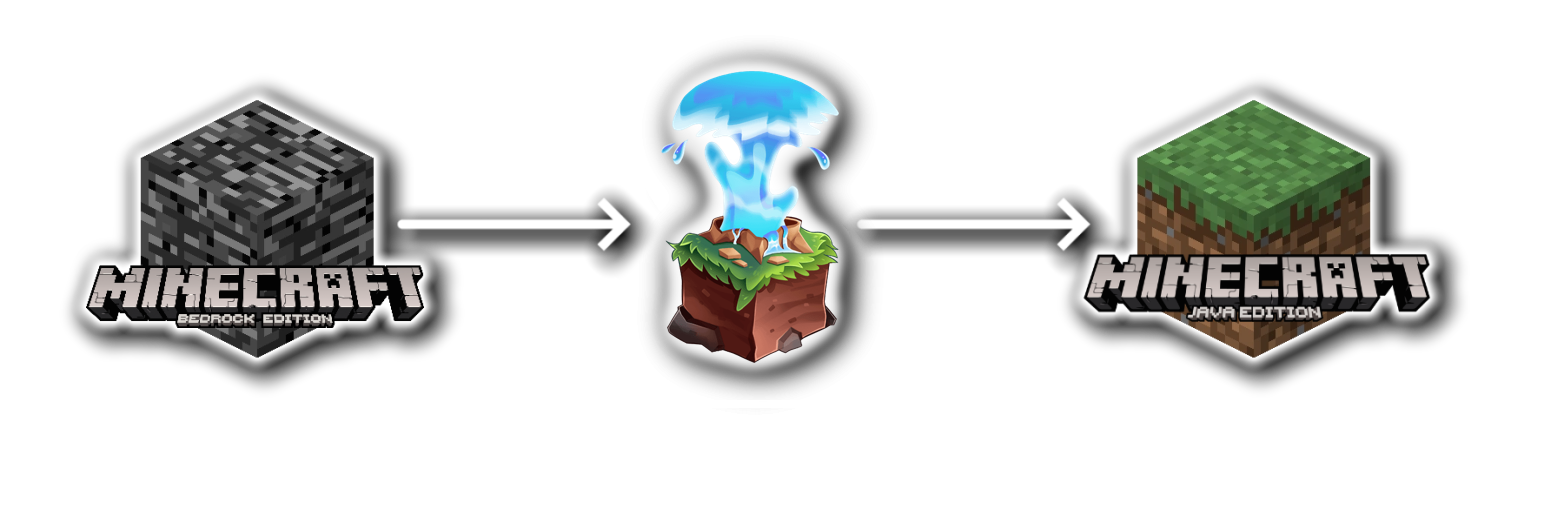
The whole setup in five steps
Both plugins come from the same place, geysermc.org/download, which offers a separate build for Spigot, Paper, BungeeCord and Velocity. Take the one that matches what you run.
- Put the Geyser jar for your server software into the plugins folder and restart the server once so it writes its config.
- Put the Floodgate jar for the same software into the plugins folder and restart again so it generates its key.
- Open the Geyser config and set auth-type to floodgate, then restart.
- Allow UDP traffic on port 19132 in the firewall and in your hosting panel.
- Add the server on a Bedrock client using the same address and port 19132.
When it works the server answers on the Bedrock port and the client drops straight into the world. When it does not, the Geyser lines in the server console say why, and the problems near the end of this guide cover what those messages mean.
The settings that matter
The config sits in the plugin's own folder, so plugins/Geyser-Spigot/config.yml on Spigot and Paper, with the folder named after whichever build you downloaded. Floodgate keeps its own config and its key in plugins/floodgate.
Geyser writes a long file and most of it can be left alone. These are the lines worth reading, written as paths rather than as they appear. A dot means nesting, so java.auth-type is an auth-type line indented under java in the file.
| Setting |
What it does |
bedrock.port |
The UDP port Bedrock players connect to, 19132 by default |
bedrock.address |
Which addresses may connect, 0.0.0.0 means all of them |
bedrock.clone-remote-port |
Makes the Bedrock port follow the Java port, for hosts that reassign it on every start |
java.auth-type |
The setting from the table above, floodgate for most servers |
Two settings named use-haproxy-protocol sit further down, one under advanced.java and one under advanced.bedrock, both off by default. They turn on the PROXY protocol, a header that carries the player's real address through whatever sits in front of the server. Without it the server sees the middleman's address, so everyone looks like they come from the same place and one IP ban locks out the whole server.
Whether you need either one depends on your configuration. They only matter when something else handles the connection before it reaches your server.
Turn on advanced.bedrock.use-haproxy-protocol when your host puts a DDoS filter in front of the Bedrock port, so traffic reaches the filter first and Geyser second. A host that works this way will tell you to enable it.
Turn on advanced.java.use-haproxy-protocol when a TCP reverse proxy such as TCPShield sits in front of your server, and switch on the matching option in your proxy's config as well. Geyser's troubleshooting page says to leave it off if you do not run one.
Getting either wrong is quiet. Players simply fail to connect while the console says nothing, which is why both lines carry a warning in capitals.
How to Install Floodgate
Installing it is short. Drop the jar into the plugins folder, restart, set auth-type to floodgate in the Geyser config, restart again.
The key file
On first start Floodgate generates a key file next to its config. It comes as a pair. Geyser encrypts the Bedrock player details with it, Floodgate decrypts them with the matching half, and that is the whole proof. Anyone who obtains it can produce a valid proof for any player, so it never leaves the server.
The Prefix in Front of Bedrock Names
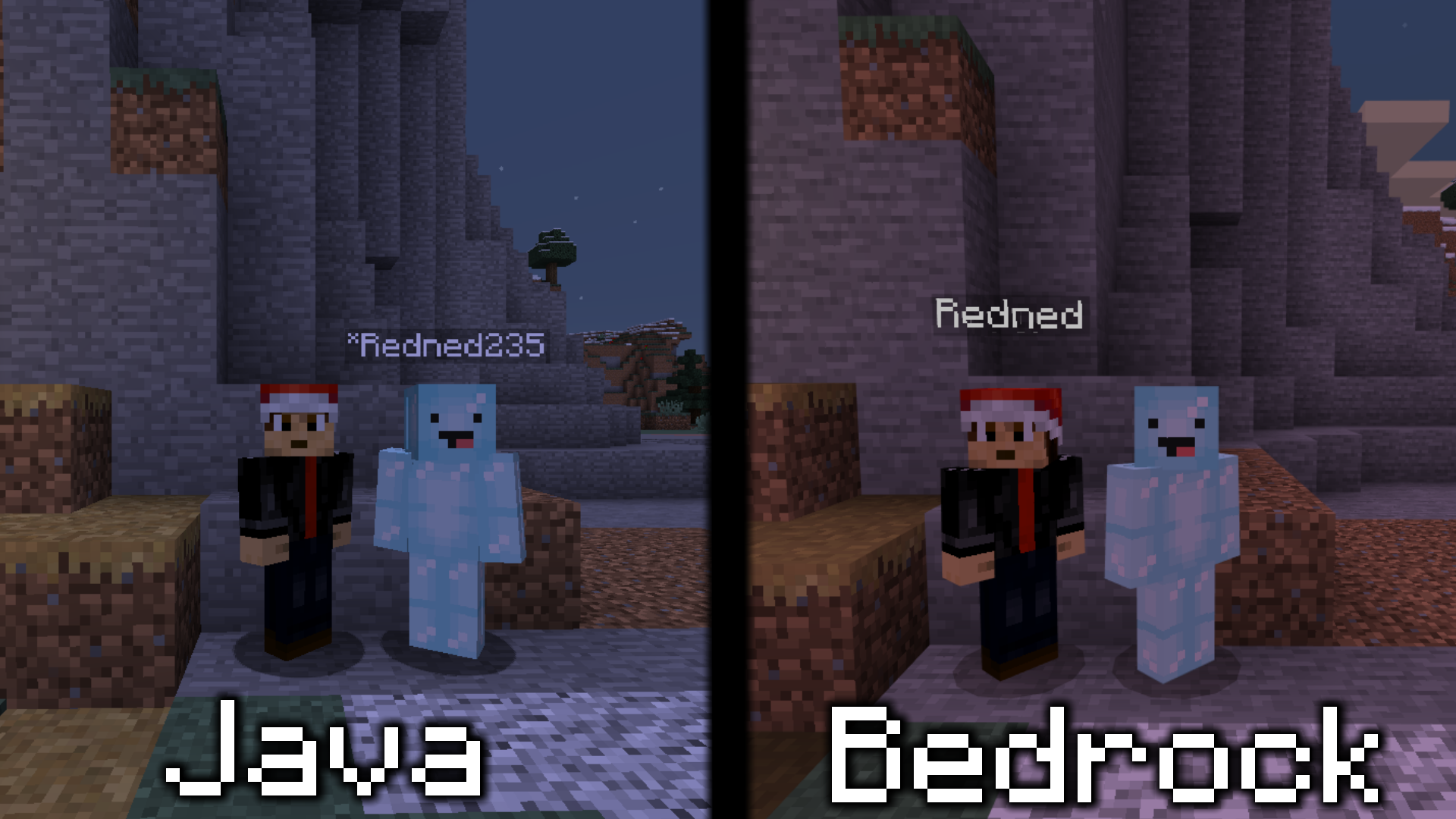
A Bedrock name is the player's Xbox gamertag. It can be changed, but on the Xbox account rather than in Minecraft. Two people on different platforms can still end up with the same name, so Floodgate puts a prefix in front of Bedrock usernames to keep a Bedrock player from colliding with a Java player. The default is a single dot, so a player called Steve arrives as .Steve. Gamertags are allowed to contain spaces, and Floodgate turns those into underscores.
Both are configurable, and the choice is a trade-off. Floodgate's own config recommends a prefix that is not a letter or a number, because an alphanumeric one can produce the collision the prefix exists to prevent. Plenty of plugins, though, still check names against the Java character set of letters, digits and underscores, and reject anything holding a dot. A prefix like B_ clears that check while still keeping Bedrock names apart, which is why a lot of live servers run one.
Whatever the prefix is, it ends up in the permissions plugin, the ban list and the database, so changing it later makes the data in all of those unusable.
Opening the Bedrock Port
This is the single most common reason a correct installation still does not work.
Java Edition uses TCP and Bedrock Edition uses UDP, so opening the Java port does nothing for Bedrock players. The Geyser config states it plainly, since Minecraft Bedrock Edition uses UDP, this port must allow UDP traffic.
The port has to be open in two places, the firewall on the machine and the panel of whoever hosts it. Some hosts do not open UDP ports at all on their cheaper plans.
What clashes with it
A UDP port cannot be shared. Voice chat plugins and the query service both want UDP, and neither can sit on the same port as Geyser. When Geyser reports that the address is already in use, something else took the port first.
How Players Connect from Phone, Console and Windows
Once the port is open, the address is the normal server address with the Bedrock port.
Phone, tablet and Windows
Open the server list, choose to add a server, and enter the address, for example mc.yourserver.com with port 19132. It works the same on all three.
Xbox, PlayStation and Switch
Consoles have no add server button. The Servers tab lists only the ones Microsoft has partnered with, and there is nowhere to type your own address.
The way around it is a DNS trick. Free services exist for exactly this, BedrockConnect for example. Point the console's DNS at one of them and the featured servers start leading to that service instead of to their real owners. Pick any of those servers and you land in a menu where you can finally type your own address and port.
This happens in the console's own network settings, not in Minecraft. The BedrockConnect address goes in as the primary DNS, and an ordinary public one such as 8.8.8.8 or 1.1.1.1 as the secondary, so everything else on the console still reaches the internet. The route is the same on all three.
Expect to try more than one address. Geyser's console page warns that the main BedrockConnect IP is often blocked on consoles, and points to the alternatives listed on BedrockConnect's GitHub page, or to Public GeyserConnect, a shared instance that does the same job. On PlayStation the main address is a known problem, so start with an alternative there.
Where DNS is not an option, apps such as Phantom or BedrockTogether get there from the other end, making your server show up as a LAN game. The catch is that the PC or phone running the app has to sit on the same network as the console.
Bedrock players arrive with a prefix in front of their name, which is Floodgate keeping the two namespaces apart.
Linking a Bedrock Account to a Java Account

Linking joins a Bedrock account and a Java account so the player keeps one character. Once linked, the Java account's inventory, location and progress are used no matter which platform they sign in from.
There are two systems and they can run side by side. Global linking sends the player to a central linking server, so they link once and it works on every server that has it enabled. Local linking keeps the pairs in a database on the server or the proxy, which leaves the server owner in control of them. Where both exist, the local entries win.
Linking is the one feature that cares about online-mode, and only the global kind. It stores the player's real Java UUID, while a server with authentication off invents its own from the name. Minecraft tracks players by UUID and not by name, so the linked Bedrock player and the same person on a PC end up as two accounts with separate inventories. Local linking keeps its own database and avoids all this, which makes it the one to use on an offline server.
Players run /linkaccount on one account, receive a code, and enter /linkaccount with that code on the other. /unlinkaccount undoes it.
The Bedrock character becomes inaccessible while the accounts are linked, so anything in that inventory or ender chest belongs on the Java account first. Unlinking, moving the items across and linking again fixes it afterwards.
Common Problems and How to Fix Them
What to do when the server does not show up in the server list?
It never does on its own. The Servers tab is Microsoft's own list of partner servers, so yours has to be added manually with the Add Server button. Consoles have no such button, which is why all three go through BedrockConnect or something similar.
What to do when it says Unable to connect to world?
Check advanced.java.use-haproxy-protocol first. Without a reverse proxy in front of Geyser that option has to be false, and it is the most common cause of a setup that looks correct and refuses every connection.
What to do when it says Address already in use?
Something already holds the port, usually a second copy of Geyser that did not shut down. Close whatever is holding it, or restart the machine when it cannot be found.
What to do when it says Outdated client or Outdated server?
Outdated client means the server is newer than the Bedrock version Geyser supports, so Geyser needs updating. Outdated server means the opposite, and the fix is either to update the server or to install ViaVersion so it can speak the older protocol.
What to do when it says Connection Refused?
Geyser reached the address and found nothing listening, or the server turned it away. Check the address and port in the config for typos, check that the Java server is running, and check the port forwarding.
What Does Not Work
Geyser emulates a Java client, so anything Bedrock has no equivalent for cannot be translated across:
- Clickable links in chat, and anything that depends on typing into the chat UI
- The glowing effect, and invisible item frames
- Telling a left click apart from a right click inside an inventory
- Custom enchantments, custom anvil recipes and custom smithing patterns
- Custom beacon base blocks, which Bedrock hardcodes
One limitation outweighs all of those. Geyser joins the way a vanilla Java client would, so a server that requires client side mods cannot be reached through it at all.
Plugins are a different matter and generally work, because from their side a Bedrock player is another Java client.
Resource packs land in between. Bedrock players can be sent one by dropping a Bedrock .zip or .mcpack into Geyser's packs folder, or by serving it from a direct download link, and custom items can be mapped across on top of that. What Geyser will not do is convert your Java pack, so a Bedrock version has to be built and kept up to date on its own.
Bedrock Ready Setups on PixelEast
Once the port is open and Floodgate is in place, a Bedrock player joins the same server as everyone else. You can browse Minecraft server setups on PixelEast, or look through the plugins that go on top of them.
Every listing states the supported Minecraft versions, the file formats and the tags, so you know before you buy whether it will fit the server you are running.